
How to Redact a PDF So the Data Is Actually Gone
Drawing a black box over sensitive text in a PDF does not remove it. The text is still in the file, selectable and copyable by anyone with a basic PDF viewer. Genuine redaction permanently destroys the underlying data. Here's how to do it properly, whatever tool you're using and however many documents you're handling.
By RedactProof Editorial Team · Feb 18, 2026 · 11 min read
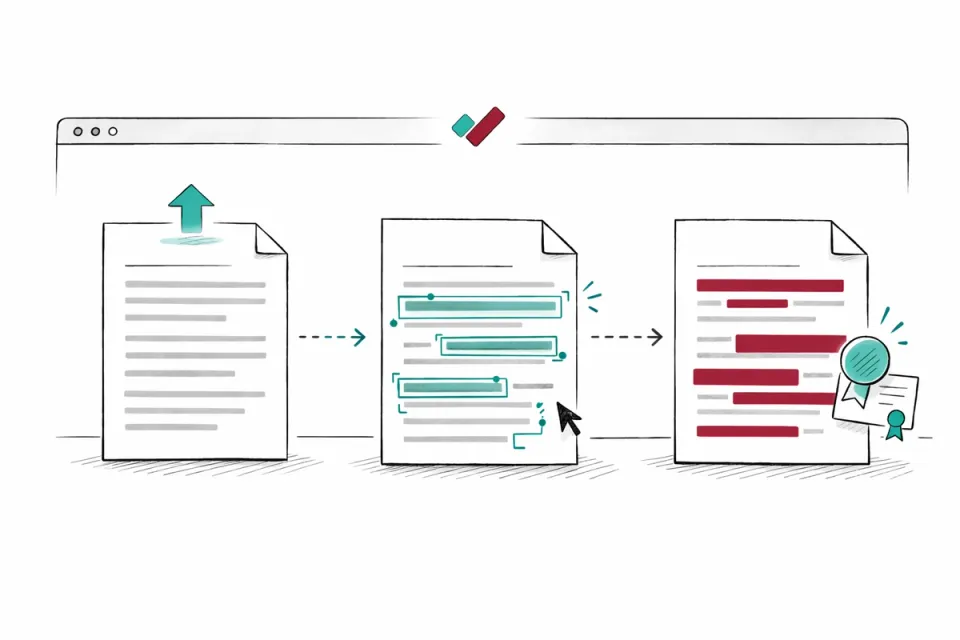
Drawing a black box over sensitive text in a PDF does not remove it. The text is still in the file - selectable and copyable by anyone with a basic PDF viewer. Permanent redaction requires a different approach entirely, one that destroys the underlying data rather than concealing it.
This guide covers all the methods available - desktop software, browser-based tools, and free options - along with how to verify your redaction actually worked, and which approach makes sense depending on what you're handling.
This article is for general informational purposes only and does not constitute legal advice. Regulatory requirements vary by jurisdiction and change over time. Consult a qualified legal professional for advice specific to your organization's circumstances.
Why most PDF "redaction" doesn't work
Most PDF tools - including Adobe Reader, browser-based viewers, and free online editors - offer annotation features that look like redaction. You draw a black rectangle, it covers the text, the document looks redacted. But those annotations sit on top of the text layer. The original data is still embedded in the PDF file structure.
This isn't a theoretical risk. The FTC and federal courts have addressed cases where overlay redaction in FOIA responses and court filings exposed personal information that should have been removed.
Genuine redaction uses a technique called pixel-burn: the tool renders the page area to an image, draws the redaction over it, and replaces the original text data with flat image pixels. The text is gone from the file, not just hidden.
Step-by-step process
The exact steps depend on your tool, but the workflow is the same regardless of whether you're using RedactProof, Adobe Acrobat Pro, or another dedicated redaction application.
- Open the document in a redaction-capable tool. Not a general PDF viewer - a tool that specifically offers permanent redaction. If you're unsure whether your tool does genuine redaction or overlay, check by running a test document through it and attempting to copy text from behind the redaction marks.
- Run automated detection (if available). Tools with AI-based PII detection will scan the document and flag personal information - names, addresses, dates of birth, Social Security numbers, email addresses, and more. Review the results carefully. Automated detection won't catch everything - unusual formats, context-dependent information, and data in embedded images may need manual identification. But it catches the bulk of standard PII types and significantly reduces the chance of missing something.
- Manually review and mark additional content. Walk through the document page by page. Pay attention to headers and footers (they repeat and are easy to overlook), tables (data in cells is dense and hard to scan quickly), embedded images, and metadata. If the document references people by partial names, initials, or role titles that could identify them, consider whether those need redacting too.
- Apply the redactions. In most tools, this is a separate "apply" or "burn" step. Until you apply, the redactions are provisional - you can adjust, add, or remove marks. Once applied, the underlying data is permanently destroyed. Make sure you're working on a copy, not your only version of the document. This step is irreversible.
- Strip metadata. Remove author information, revision history, comments, tracked changes, and any embedded file attachments that might contain personal data. Some tools do this automatically when you apply redactions. Others require a separate step.
- Verify the output. Open the redacted file in a different application. Try to select text behind the redaction marks. Search the document text for strings you know should be removed. If anything comes through, the redaction is incomplete. See our dedicated guide on how to verify redaction worked for a more thorough approach.
Online and browser-based redaction
Browser-based tools have improved significantly. Several now offer genuine pixel-burn redaction in the browser - no installation required, nothing to configure, no IT ticket needed. The main distinction to understand is between tools that process your document locally (in your own browser, on your hardware) and tools that upload your file to a server for processing.
RedactProof falls in the first category. Documents are processed in your browser and are not uploaded to our servers - the file stays on your machine throughout. This matters particularly for legal documents, HR files, and medical records, where uploading to a third-party server may conflict with data handling obligations.
Upload-based online tools like iLovePDF and Smallpdf do offer PDF redaction functionality, but both process files on their own servers. iLovePDF states files are deleted after two hours; Smallpdf states deletion within one hour (May 2026). Their free tiers are limited - Smallpdf caps free users at two tasks per day across all their tools (May 2026), and iLovePDF's free tier has a daily limit that encourages upgrading to Premium. For documents that are not sensitive, these tools work fine. For anything confidential, consider whether that server upload is acceptable.
For a detailed comparison of processing models and what to look for, see our guide on browser-based versus desktop redaction.
Free PDF redaction options - and their limits
Several tools offer free redaction. Whether "free" means what you think depends on the tool. Here's a practical breakdown.
- Adobe Acrobat Pro requires a paid subscription (desktop installation, no free tier for redaction). It does genuine pixel-burn redaction but has no automated PII detection - every mark is placed manually.
- Foxit PDF offers redaction in its paid PDF Editor Pro tier. No permanent free redaction tier. Desktop-based.
- iLovePDF offers online redaction free, with a daily usage cap and server-side file processing. Files are deleted after two hours.
- Smallpdf offers online redaction, but free users are limited to two tasks per day across all tools (May 2026). Upload-based.
- RedactProof's free tier includes unlimited pattern-based recognition and unlimited exports - with no daily task cap. Documents are processed entirely in your browser. Paid plans add AI-powered detection, tamper-evident certificates, and OCR.
The key question with any free tool is: does it do pixel-burn redaction, or just overlay? And does it upload your file? Test any free tool before trusting it with sensitive documents - redact a test file, then try to extract the text using a PDF text extractor. If you get the "redacted" content back, the tool isn't doing genuine redaction.
For a broader look at what separates adequate tools from reliable ones, the redaction software buyer's guide covers the criteria worth evaluating.
Desktop redaction tools
Desktop applications remain the standard in larger organizations - particularly law firms and regulated businesses where software is deployed centrally by IT.
Adobe Acrobat Pro is the most widely used desktop redaction tool. It does genuine pixel-burn redaction and handles complex PDFs reliably. There is no free tier for redaction, and no automated PII detection. If your documents are complex or your firm already has Acrobat Pro licenses, it works. If you're spending time manually hunting through 200-page disclosure bundles, you'll feel the absence of AI detection quickly.
Foxit PDF Editor Pro and Nitro PDF Pro are common alternatives - both offer genuine redaction at lower price points than Acrobat. Neither includes automated PII detection. For organizations handling FOIA, consumer data requests, or legal disclosure regularly, the manual-marking workflow becomes a bottleneck.
For a more complete breakdown of options by use case, see best redaction software for lawyers and the buyer's guide linked above.
What to do with scanned documents
Scanned PDFs - where pages are images rather than digital text - require an additional step. OCR (optical character recognition) converts the image content into searchable text, which can then be detected and redacted. Without OCR, a PII detection tool can't read what's in the image.
Run OCR before detection, not after. Once you have text-searchable pages, the rest of the process is the same as for digital PDFs. After redaction, the text layer is destroyed by the pixel-burn process, so the final output is secure regardless of whether the original was scanned or digital.
A practical note: OCR quality varies with scan quality. If your scanner produces low-contrast or skewed images, recognition accuracy drops and PII can be missed. Run a quality check on your OCR output before proceeding to redaction - particularly for older documents or anything faxed and re-scanned.
How to verify redaction worked
Verification is not optional. A document that appears redacted and a document that is properly redacted are not the same thing. Checking takes minutes and can prevent a data breach.
- Open the redacted PDF in a different PDF viewer from the one you used to redact. Some viewers only show the annotation layer. A different viewer gives you an independent read of the file structure.
- Try to select and copy text from behind the redaction marks. If you can highlight the text, the redaction is overlay-only and the data is recoverable.
- Use Ctrl+F (Find) and search for a name or identifier you know was in the original. If the search finds it, the text is still present in the file.
- Check the metadata. Open file properties and look at the author field, creation tool, and any embedded comments. Personal data can persist in metadata even when the body text is correctly redacted.
- For high-stakes documents, consider a cryptographic verification certificate. RedactProof generates a tamper-evident certificate linked to the redacted file's hash - any subsequent modification to the document invalidates the certificate, providing an auditable record of the document's state at export.
See also: our detailed guide on document integrity verification and the explainer on verification certificates.
Common use cases and what they require
The right approach varies depending on what you're redacting and why. Here's a brief summary of the most common scenarios.
Consumer data requests under CCPA and similar state privacy laws require careful redaction of third-party personal information before disclosure to the requester. Automated PII detection helps, but manual review of each document is standard practice - particularly where the same individual appears in multiple roles in the file.
FOIA responses often involve large document volumes with tight deadlines. This is where batch processing and automated detection pay off - manually reviewing hundreds of pages per response adds up quickly. Tools that can process multiple documents in a queue are worth considering for any team handling FOIA regularly.
HR and employment records involve particular sensitivity: grievance files, performance reviews, and disciplinary records often contain third-party names that need redacting before sharing. These documents are rarely high-volume but are often high-stakes.
Medical records and healthcare documents carry obligations under HIPAA and state-level privacy laws. Patient names, dates of treatment, diagnosis codes, and provider information are all typically protected. Automated detection that recognizes medical PII types is particularly valuable here.
Mistakes that leave data exposed
The failure mode is almost always the same: overlay annotation mistaken for real redaction, or a step skipped under time pressure. Our guide to common redaction mistakes covers the patterns we see most often, including metadata exposure, partial redaction of repeated data, and the specific risks of working with scanned documents. If you're reviewing your own process, it's worth 10 minutes.
When you're redacting more than one document
Single-document workflows are straightforward. The challenge comes when you're processing a disclosure bundle of 50 documents, a consumer data request response with 200 pages across 15 files, or a monthly compliance review across an entire HR directory. Manual document-by-document redaction doesn't scale well.
For volume work, look for tools that support bulk document redaction - processing multiple documents in a queue rather than one at a time. RedactProof's Pro and Team tiers support bulk mode, applying automated detection across a file set and presenting results for review before export.
Frequently Asked Questions
Can I redact a PDF using Microsoft Word?
You can open a PDF in Word, delete text, and re-save as PDF. But this doesn't qualify as redaction - Word reformats the document, often changing layout, fonts, and pagination. It also doesn't guarantee that the deleted text is removed from the file structure rather than just hidden. For proper redaction, use a tool designed for it.
Is free redaction software safe to use?
Some free tools offer genuine pixel-burn redaction, but many only provide overlay annotation that leaves text recoverable. Before relying on any free tool for sensitive documents, run a test: redact a document with known text, then try to recover that text using a different viewer. If you can extract it, the tool isn't doing genuine redaction. Free online tools that require uploading your document also raise data handling questions for confidential material.
How many documents can I redact in a browser-based tool?
That depends on the tool and your device. RedactProof's free tier includes unlimited pattern-based recognition and unlimited exports (with a small footnote attribution). Paid plans from Core upwards add AI-powered detection, tamper-evident certificates, and OCR text restoration - with no per-document caps on any tier. Processing speed depends on document size and your device hardware, since everything runs locally in the browser.
Do I need to redact every mention of someone's name?
Under data protection laws such as GDPR and CCPA, personal data includes any information that can identify an individual - directly or in combination with other data. If someone's name appears alongside other identifying information (job title, department, case reference), all instances generally need redacting. A name alone in an internal memo may be less sensitive than a name alongside a medical condition in a tribunal bundle. Context matters, and your organisation's data protection officer or legal team can advise on borderline cases.
Is it safe to redact PDFs online?
It depends on how the online tool works. Tools that process documents locally in your browser - without uploading the file to a server - are suitable for confidential documents. RedactProof works this way: your file stays on your device throughout. Upload-based online tools (where your document travels to a third-party server) require more care - check the provider's data retention and deletion policies, and consider whether uploading confidential or legally privileged material is acceptable under your organisation's data handling policies. For solicitor-client privilege material or patient records, local processing is generally the safer choice.
Can someone undo PDF redaction?
With genuine pixel-burn redaction, no. The underlying text data is permanently destroyed - there is nothing to recover. With overlay redaction (a black box placed on top of the text), yes - the data remains in the file structure and can be extracted by removing or copying through the annotation layer. This is why the method matters. If you used a tool that does overlay annotation rather than pixel-burn redaction, the redaction can be undone. If you're unsure which method your tool uses, test it: apply a redaction, save the file, open it in a different viewer, and try to select or search for the text you redacted.
What's the difference between hiding and redacting?
Hiding places a visual element (typically a black rectangle) over text, concealing it from view while leaving the underlying data intact in the file. Redacting permanently removes the text data from the file so it cannot be recovered by any means. Many common PDF editors - including basic annotations in Adobe Acrobat Reader, browser PDF viewers, and free tools that advertise redaction - actually only hide text. The distinction matters because a hidden text redaction can be undone by anyone with a PDF editor. A genuine redaction cannot. Before disclosing any document, confirm that your tool uses pixel-burn redaction - not annotation-based hiding.
Related Documentation
Try it yourself
Put this into practice with RedactProof. Free account, no installation needed.