
Bulk Redaction: How to Process Multiple Documents in One Session
A paralegal handling a Subject Access Request sits down with 14 documents. Employment contracts, disciplinary notes, emails, a medical referral. Each document needs the same names redacted, the same NI number caught, the same home address removed. Doing them one at a time means repeating the same approvals 14 times.
By RedactProof Editorial Team · 20 Mar 2026 · Updated 6 Sept 2026 · 6 min read
A paralegal handling a Subject Access Request sits down with 14 documents. Employment contracts, disciplinary notes, emails, a medical referral. Each document needs the same names redacted, the same NI number caught, the same home address removed. Doing them one at a time means repeating the same approvals 14 times - and the risk of missing something on document 11 because concentration slipped after document 7.
Bulk redaction solves this. Not by cutting corners, but by making the repetitive parts automatic while keeping the human review where it matters.
This article is for general informational purposes only and does not constitute legal advice. Regulatory requirements vary by jurisdiction and change over time. Consult a qualified legal professional for advice specific to your organisation's circumstances.
What bulk redaction actually changes
Single-document redaction works fine when you have one file. The problem scales badly. A typical FOI response might involve 8-30 documents. A litigation disclosure bundle could be hundreds. Even a straightforward employee SAR generates a stack of HR records, payslips, and correspondence.
The tedious part isn't the redaction itself. It's the repetition. "Mustafa Abdul" appears in every document. You approve it in document one, then approve it again in document two, then again in three. By document nine, you're operating on autopilot - which is exactly when mistakes happen.
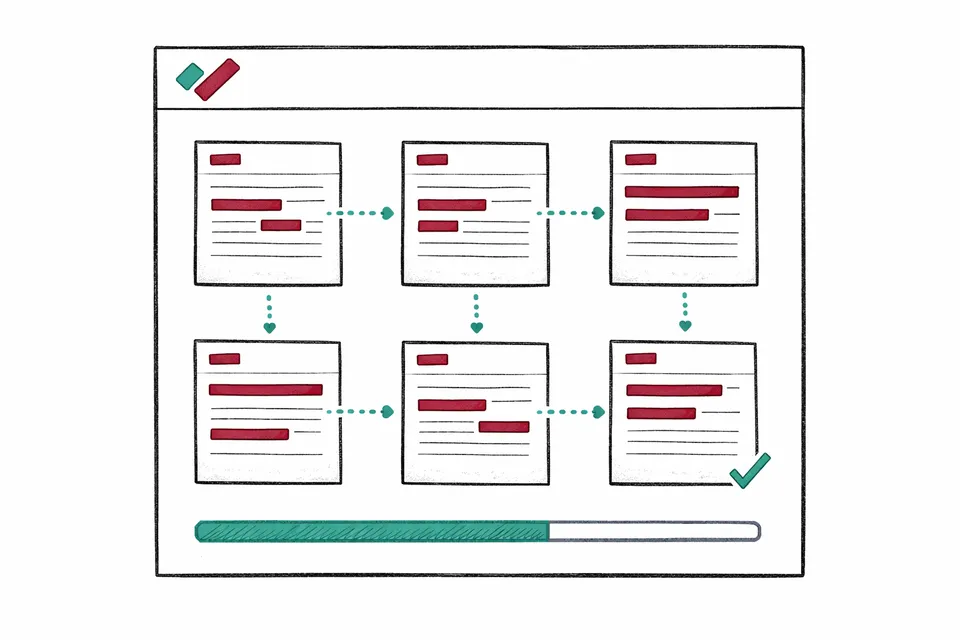
Bulk redaction treats a set of documents as a single session. Upload them together, scan them together, and - critically - share your approval decisions across all of them.
How it works in practice
Upload multiple PDFs from the home screen. Drop them into the upload area or click to browse and select several files. RedactProof shows a file list with page counts and an estimated scanning time before you commit.
Once you open the session, documents appear in a panel on the left side of the editor. Each document has a status indicator:
- Grey dot - pending, not yet scanned
- Blue pulse - currently being scanned by the AI engine
- Amber dot - scanned, has detections waiting for review
- Green dot - reviewed and ready to export
Hit Scan All and the system processes every document sequentially, shortest first. A 3-page letter scans in seconds. You can start reviewing it immediately while a 45-page report scans in the background.
Session vocabulary - the part that saves real time
This is what separates bulk redaction from simply processing documents faster.
When you approve a detection - say, redacting "Dr Sarah Chen" as a name with the attribution code "GDPR Art 6(1)(c)" - that decision is added to the session vocabulary. The vocabulary is a running list of every entity you've approved, along with its type and reason code.
When the next document finishes scanning, the vocabulary is applied automatically. Every instance of "Dr Sarah Chen" is pre-approved with the same attribution code. No repeated clicks. No risk of missing an occurrence because you were distracted.
The vocabulary grows as you work. Approve a phone number in document three, and documents four through twenty pick it up without asking. Approve a new name that only appears in document fifteen, and the system runs a quick text search across documents one through fourteen to catch any earlier occurrences.
One approval decision, applied everywhere it's relevant. The reason code travels with it.
Reviewing documents during scanning
You don't have to wait for every document to finish scanning before you start work. Click any document with an amber dot to switch to it. The editor loads that document's detections, and you can approve, reject, and edit suggestions while the scanner continues processing other documents in the background.
Manual redaction tools (box, word, line selection) remain available on unscanned documents too. If you know a document well enough to redact manually before the AI runs, nothing stops you.
Switching between documents saves your work automatically. Approvals, rejections, and manual redactions persist when you switch away and come back.
What the AI detects across a batch
The detection engine runs the same pipeline on each document: regex patterns first (catching structured data like NI numbers, email addresses, IBANs, and phone numbers), then AI detection for context-dependent items like names, dates of birth, and medical record numbers.
All detection engines work in bulk mode. Your documents and their text never leave your device, on every plan. There is no cloud mode.
Cross-page name propagation runs after each document completes. If the AI finds "J. Patel" on page one and "Jayesh Patel" on page four, both are surfaced as suggestions.
Exporting the batch
Export All downloads each redacted PDF sequentially. Files are named with a _redacted suffix. Pixel-burn redaction applies to every document - the original text beneath redaction boxes is permanently destroyed, not masked.
Individual documents can also be exported one at a time if you prefer to release them as they're ready rather than waiting for the full batch.
Session persistence
Close the browser tab by accident? The session survives. RedactProof saves session state to your browser's local storage after every action. Reopen the editor and your documents, approvals, vocabulary, and scan progress are all restored.
The session persists until you explicitly end it by clicking End Session in the left panel.
Scanning speed
Scanning time depends on the detection engine and document length. Shortest documents are scanned first so you have something to work on quickly.
Rough estimates per page:
- Scan speed - approximately 3 seconds per page. A 10-page document scans in about 30 seconds.
Practical limits
Up to 20 documents per session. Each document can be up to 100MB. The browser handles memory efficiently by only rendering the active document's pages - inactive documents are stored as lightweight data until you switch to them.
When to use bulk vs single document
Bulk mode earns its keep when you have three or more related documents containing overlapping personal data. The session vocabulary provides diminishing returns on a single document - there's nothing to propagate to.
Typical bulk redaction scenarios:
- SAR responses - HR records, emails, meeting notes for one data subject
- FOI disclosures - related documents from the same department or project
- Litigation bundles - witness statements, exhibits, correspondence
- Mortgage and conveyancing files - applications, valuations, identity documents
- Patient record releases - clinical notes, referral letters, test results
For a single standalone document, the standard editor workflow is simpler and faster.
Start bulk redacting in your browser
RedactProof handles bulk document processing entirely in your browser - no uploads, no installs. Load multiple PDFs, run AI detection across all of them, review results, and export with pixel-burn redaction and tamper-evident certificates.
- Compare plans - see which tiers include bulk processing
- Security architecture - how your files stay on your device
- Verification certificates - confirm your redacted exports have not been tampered with
- SAR redaction software - bulk redaction for subject access request bundles
Frequently Asked Questions
How many documents can I process in one bulk redaction session?
Does bulk redaction work with all detection engines?
What happens if one document fails during bulk scanning?
Is bulk document redaction available on all plans?
Does the session vocabulary carry over between sessions?
Related Documentation
Try it yourself
Put this into practice with RedactProof. Free account, no installation needed.