
Redaction Checker: find out if a redacted PDF still leaks
Most redaction checkers run a personal-data scanner over the whole document and hand you a long list of guesses. This one starts from the black boxes that are already there and asks a narrower question: is what sits under and around them really gone? It runs on your device, needs no account, and says what it checked and what it did not.
By RedactProof Editorial Team · 5 Sept 2026 · 5 min read
Redaction Checker is an informational tool. It reports what is still recoverable from a file; it does not judge whether a document was redacted correctly, and its findings are not legal advice. Absence of findings is not a guarantee of safe redaction.
Not another personal-data scanner
A redacted document has already had its decisions made. Someone chose what to hide. The useful question is whether those choices held: is the text still in the file beneath the box, is the box a shape resting on top of a scan, did the same name survive on another page, is the value sitting in the metadata.
Most checkers answer a different question. They run a personal-data detector across every page and flag each name, number and address they find, redacted or not. You get a long list to wade through, most of it false positives, and the one real leak is somewhere in the middle. This checker starts from the black boxes that are already there and looks under and around them, for leftover text and for redaction methods that do not last.
What it looks for
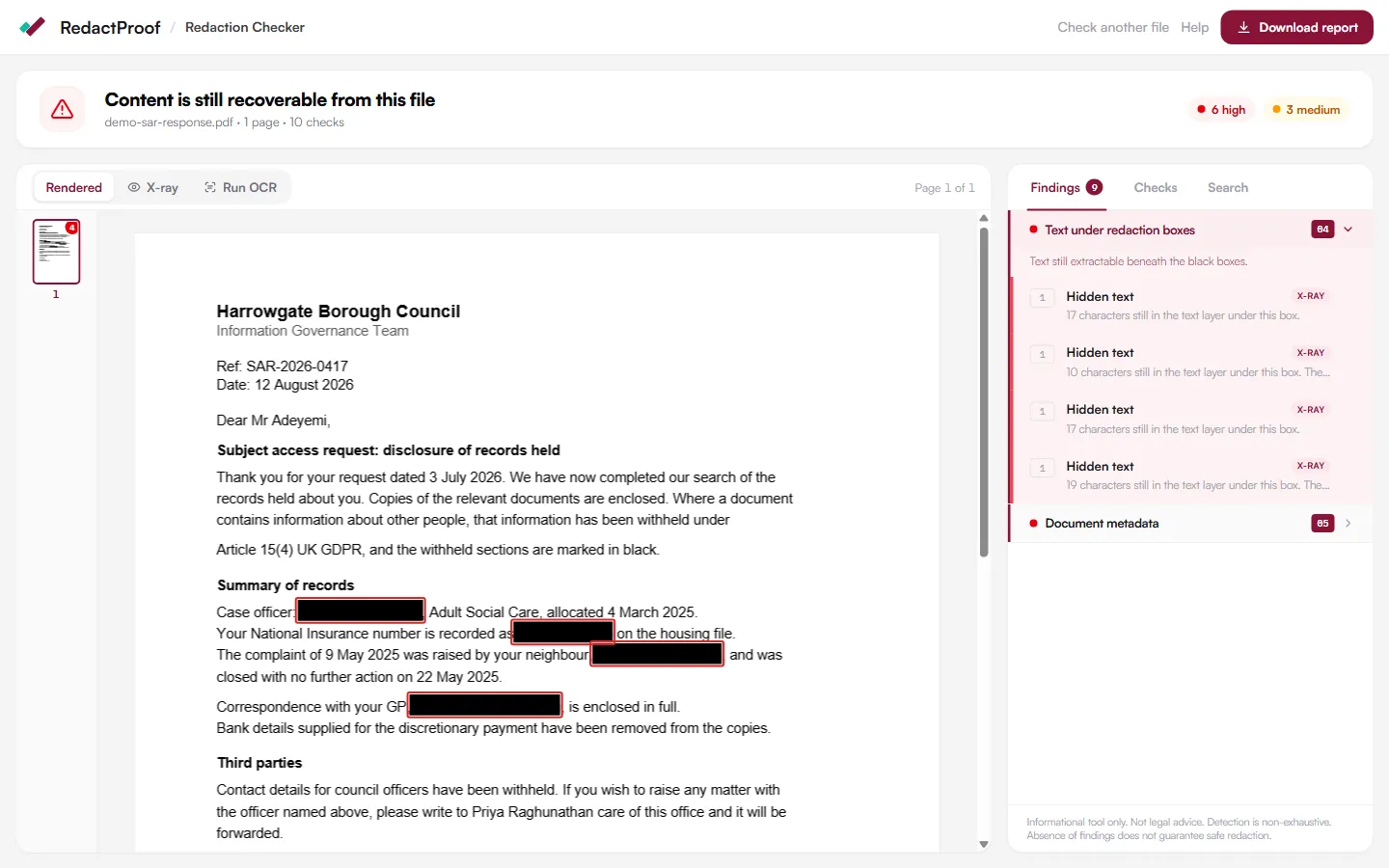
A black box on a PDF can be three different things. It can be a real redaction, where the text underneath was removed. It can be a shape drawn over text that is still in the file, one copy-and-paste away. Or it can be a shape drawn over a scanned page, which anyone with a PDF editor can lift off. The checker tells you which.
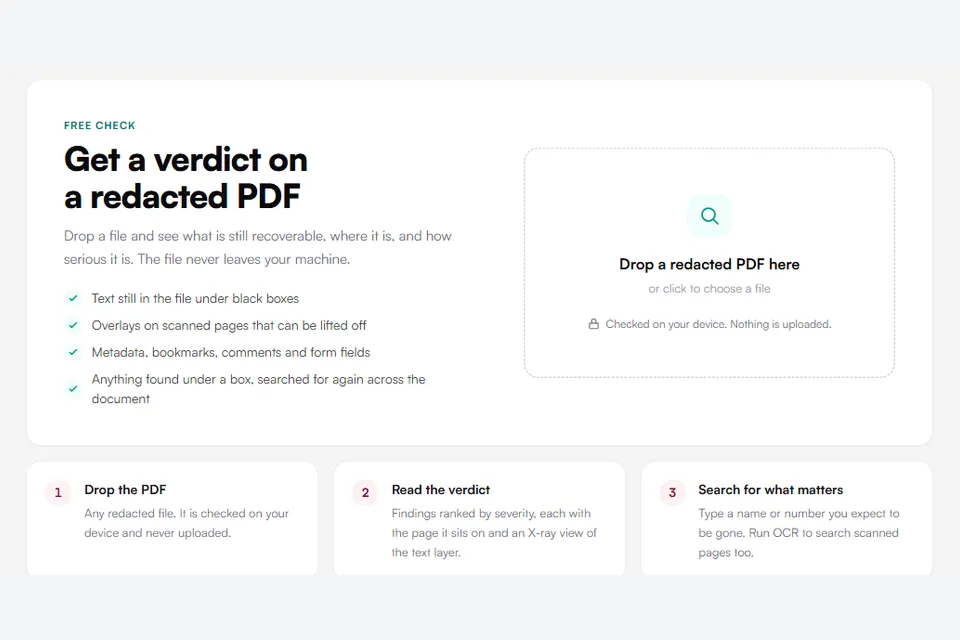
Drop a redacted PDF in and it runs the checks on your own machine:
- Text under redaction boxes. Whether the words beneath each box are still in the file's text layer.
- Overlays on scanned pages. Shapes placed over an image rather than burned into it, with a reveal of what sits underneath.
- Metadata, bookmarks, comments, form fields and attachments. The places redaction tools forget.
- Anything found under a box, searched for again. When text is still in the file beneath a box, the checker looks for the same name or number elsewhere in the document, including short forms such as a surname on its own. A properly removed value leaves nothing to search for, so this only fires once a first leak exists.
- Search. Type the names or numbers you expect to be gone, comma separated, and get a row for each one: where it still appears, or a tick when it is not in the document. Fuzzy match also finds near misses: a name the text layer or OCR got slightly wrong, a number written with different spacing, or the term inside a longer word. Each match shows the text it found and how it differs from what you typed.
Open the Redaction Checker - free, no account, nothing uploaded.
How it decides a box is really hiding something
Most checkers stop at "is there text in the file at these coordinates". That produces false alarms on ordinary documents: a grey table header drawn under its text, a white form background, a highlight, a transparent logo, all look like covers to a geometry test.
The checker renders each page and looks at the pixels. It splits every text run into characters, finds the ones whose position falls inside an opaque shape, and then samples the rendered page under each character. Only a flat, uniform colour counts as hidden. Shaded cells, highlights and backgrounds are visibly showing their text, so they are left alone. A box that cuts through a word reports the characters it actually covers, marked with an ellipsis where the edge falls mid-word.
Scanned documents get one more step. A scan with an invisible text layer, the kind produced by scanner software and OCR, can have that layer sitting a few points away from the printed words. A box over the picture of a name may not sit over the layer's copy of it. Run OCR from inside the checker and it lines the layer up with the page, re-runs the box test, and reports what the layer still holds that the page no longer shows.
What it deliberately does not do
The checker does not scan the visible text for personal data and tell you what should have been redacted. That is a judgement about the document, not a fact about the file, and a tool that pretends otherwise produces a wall of false positives and a false sense of completeness. RedactProof's editor does that job with review, when you are redacting rather than checking.
Every set of results states what was checked and what was not, so a short list of findings is never mistaken for a verdict on the whole document. A clean result means the checks that ran found nothing. It does not mean the document is safe.
Nothing leaves your device
The PDF is opened and analysed in your browser. OCR, when you run it, is also done locally. Nothing is uploaded, and there is no account to create. The only thing the checker can send anywhere is the report you choose to download, which lists finding types and page numbers and masks the values themselves so it is safe to forward.
Reading the results
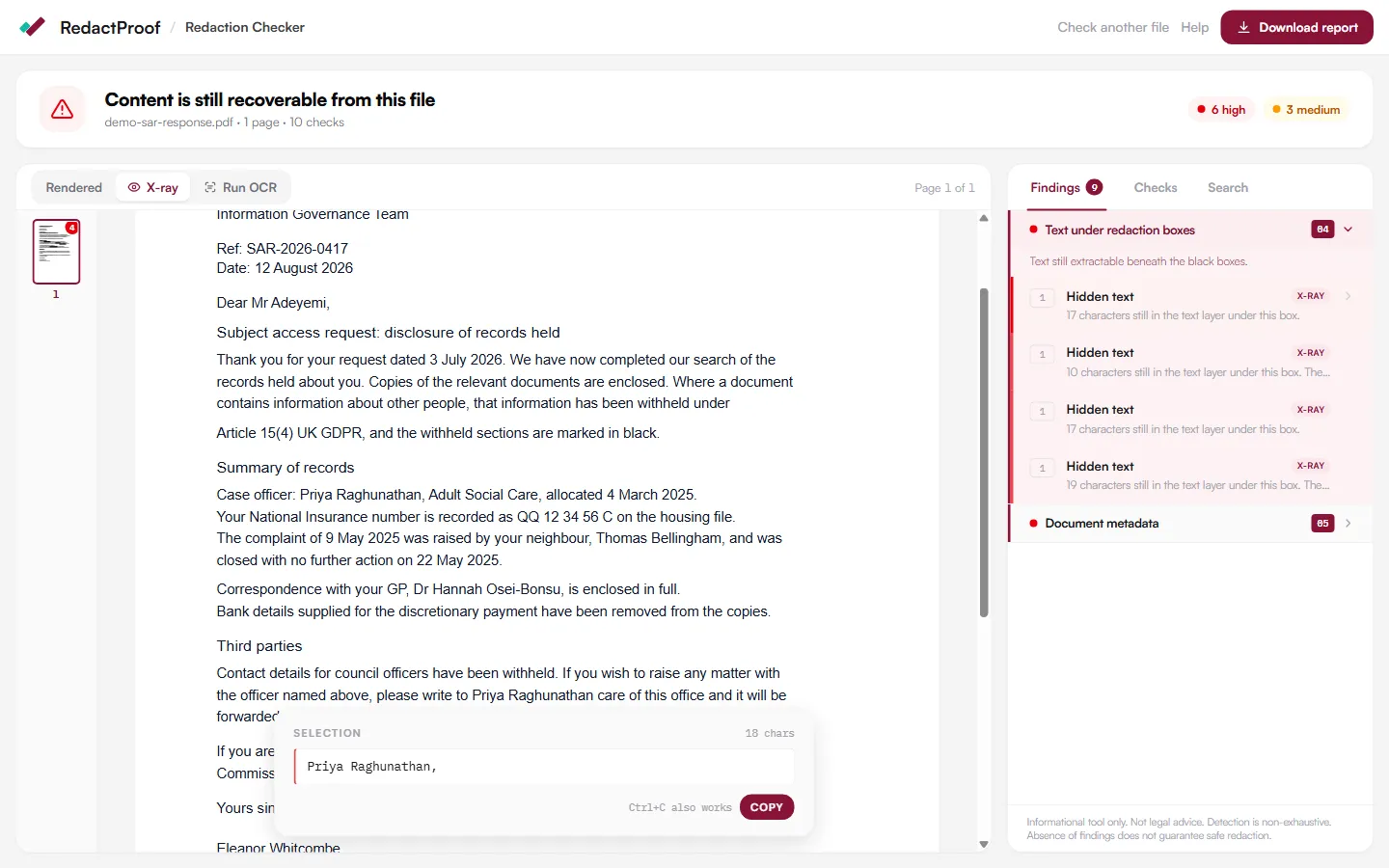
Findings sit in three groups: what was found, what came back clean, and your searches. Each finding names the page, the check that raised it and, for hidden text, how many characters are still in the file. Click one and the viewer jumps to the box and switches to X-ray, which shows the text layer so you can see and copy exactly what a recipient could.
The report is a PDF you can attach to a file note or send to whoever produced the document. It records the file's hash, the checks run, the findings and the notes, and it says plainly which checks were out of scope.
Fixing what it finds
If the checker finds text under boxes, the document needs re-redacting with a tool that removes the text rather than covering it. RedactProof burns redactions into the page pixels, removes the underlying text and metadata, and can issue a tamper-evident certificate for the exported file. Our guide to overlay versus pixel-burn redaction explains the difference, and common redaction mistakes covers the failures the checker was built to catch.
Frequently Asked Questions
Does the checker upload my document?
No. The PDF is opened and analysed entirely in your browser, including OCR if you run it. Nothing is sent to a server and no account is needed. The only file that can leave your machine is the report you choose to download, which lists finding types and page numbers and masks the values so it is safe to share.
What does "text under a redaction box" mean?
It means the words beneath a black box are still stored in the PDF's text layer. Anyone can select them, copy them or search for them, even though they are not visible on screen. This is the most common redaction failure and the reason the checker exists. A genuine redaction removes the text from the file rather than covering it.
Why does it show fewer findings than another checker I tried?
Most tools raise a finding whenever text and a shape overlap in the file. That flags shaded table cells, highlights and backgrounds that are plainly showing their text. The checker renders the page and only counts text as hidden when the pixels under it are a flat colour, so a clean document stays clean and the findings it does raise are ones you can see for yourself in X-ray.
Can it tell me whether I have redacted everything I should have?
No, and it says so on every result. Deciding what should have been redacted is a judgement about the document and its purpose, which no automated tool can make for you. The checker reports what is recoverable from the file that you believed was hidden. Use the search box for the specific names and numbers you expect to be gone.
Try it yourself
Put this into practice with RedactProof. Free account, no installation needed.