
Approval workflow: second-person review for redaction teams
Separate the person who prepares redactions from the person who signs them off - the separation-of-duties control auditors know as maker-checker or the four-eyes principle. Preparers do the redaction work and submit it; approvers review the exact same work on their own copy of the document and export it under their own name. Every step is audit-logged, and the document itself never touches our servers.
Available with 2 or more seats - team features unlock automatically at 2 seats. Screenshots show example accounts.
How it fits together
- An admin marks a team member as Approval required (Team tab). They become a preparer: they redact as normal but cannot export.
- The preparer finishes a document and clicks Submit for approval. Their redaction decisions - not the document - go to the team's approval queue.
- An approver (any member with export rights) accepts the submission, opens their own copy of the source document, reviews the restored redactions, and exports.
- The export resolves the submission: certificate and audit trail record the approver as the exporter. Declines go back to the preparer with a note.
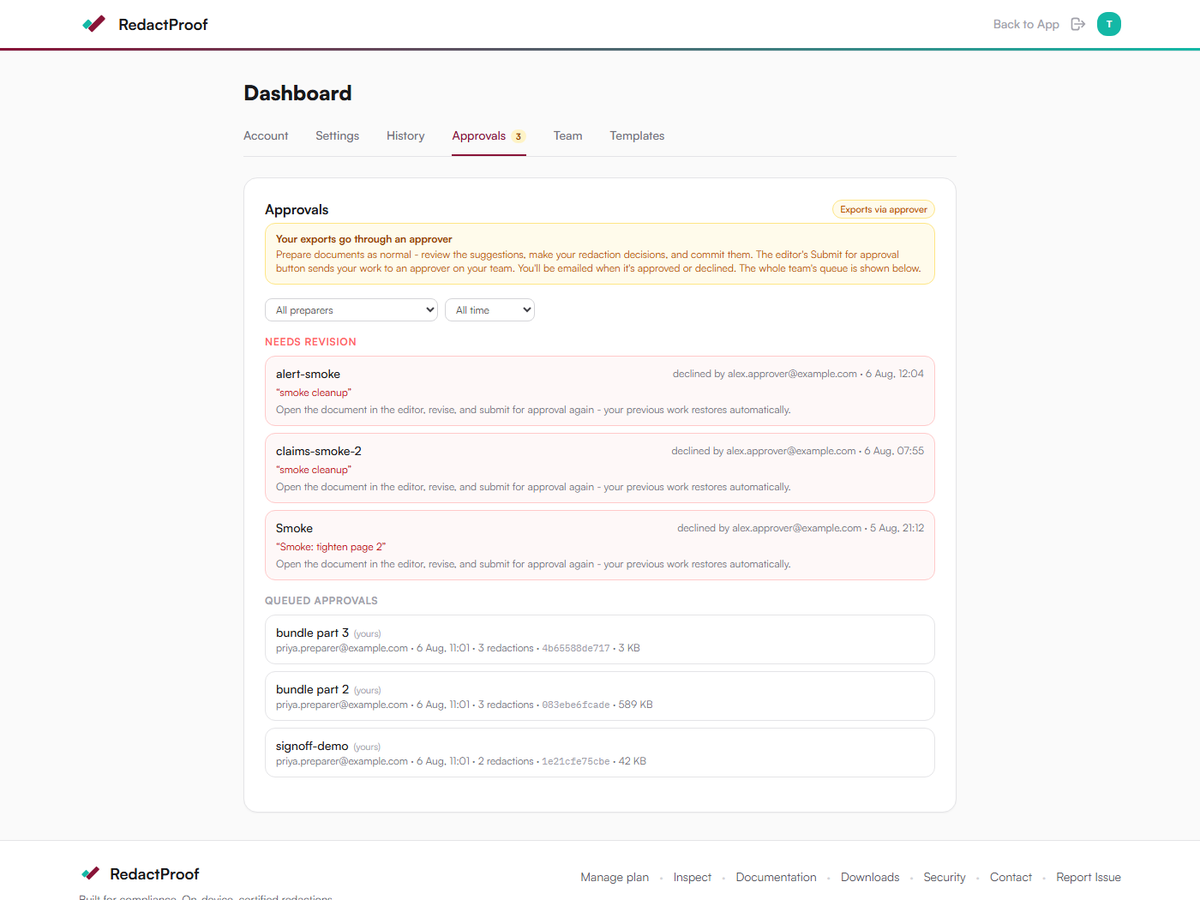
The team's whole queue - queued, claimed, and completed work - is visible to every member on the dashboard's Approvals tab, so owners keep full oversight even when they are not the ones approving.
The approver's board
Queued submissions show who prepared the work, when, how many redactions, the document's fingerprint, and the expected file size - enough to identify a document without its filename ever leaving the preparer's machine.
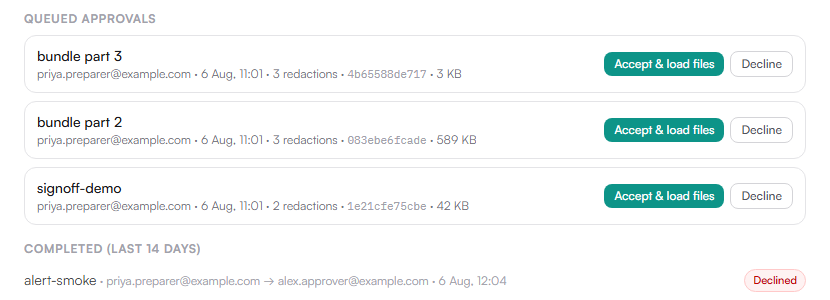
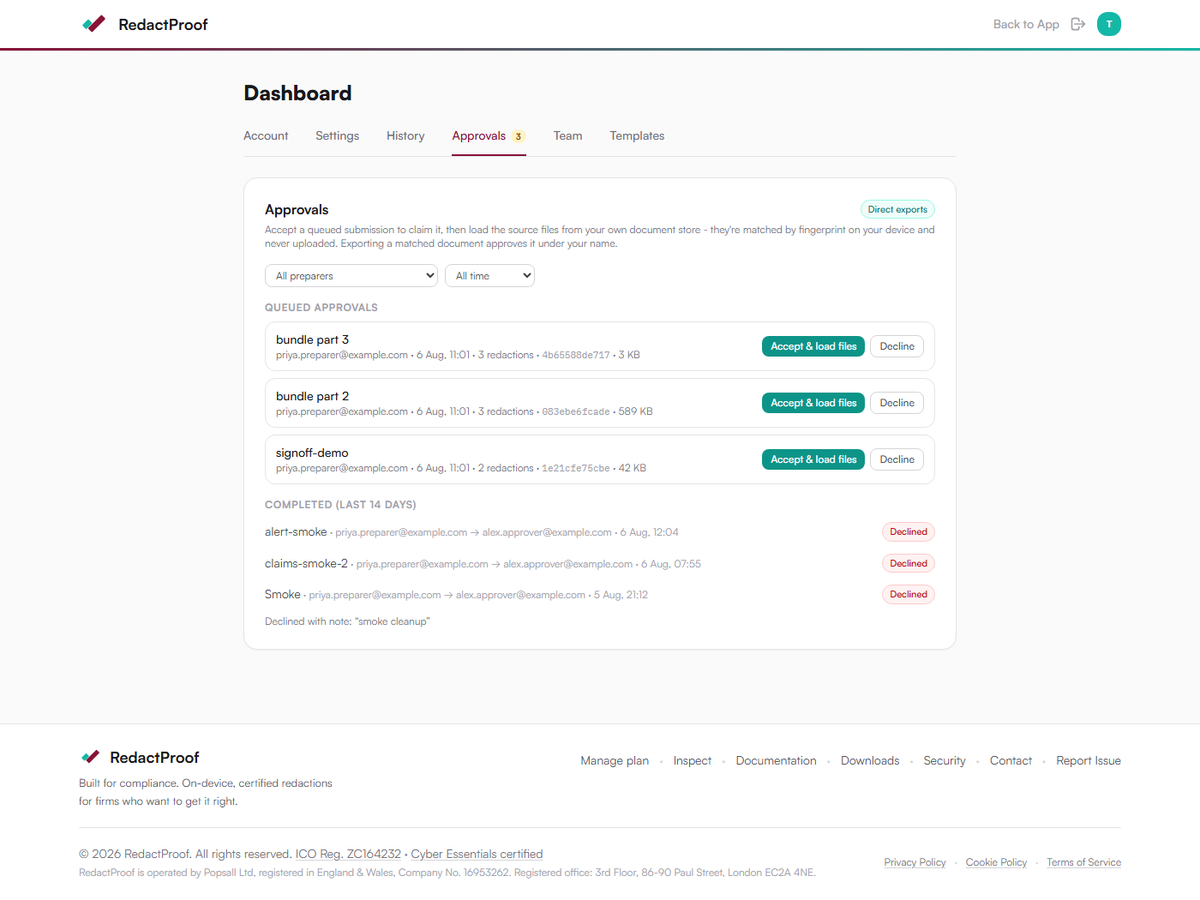
Accept & load files
Accepting a submission claims it - the board shows your name against it so colleagues know it's being handled. The Load source files panel then matches your local files against your claimed set: drop files or pick your shared work folder, and each document is fingerprinted on your device and ticked off. Found documents show their local filename; anything missing after a scan is flagged so a 20-document batch can never silently become 18.
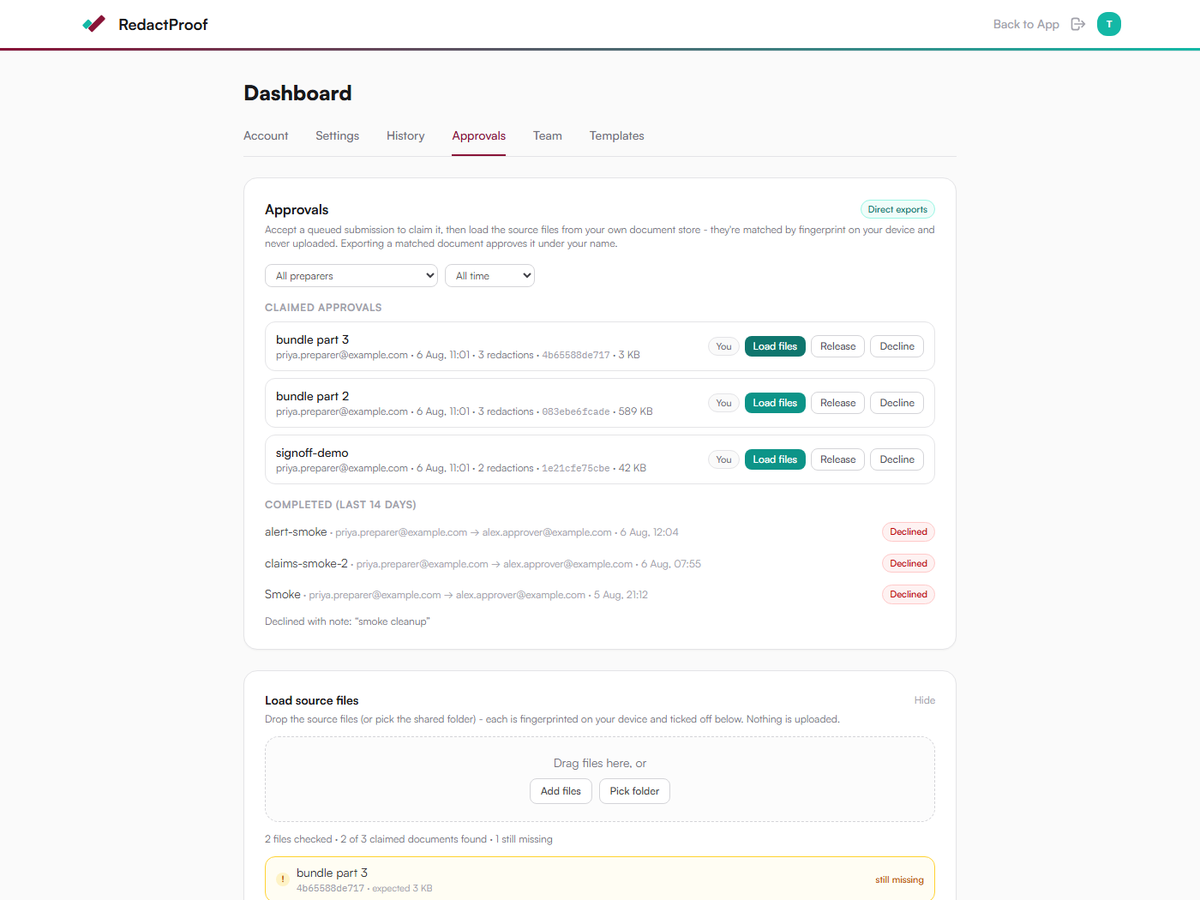
Opening a matched document loads it into the editor with the preparer's work restored - clearly labelled as a submission, never confusable with your own saved states. Review it, adjust if needed, and export: the export approves the submission under your name. Prefer to reject it? Decline sends it back with an optional note.

Handover and absence
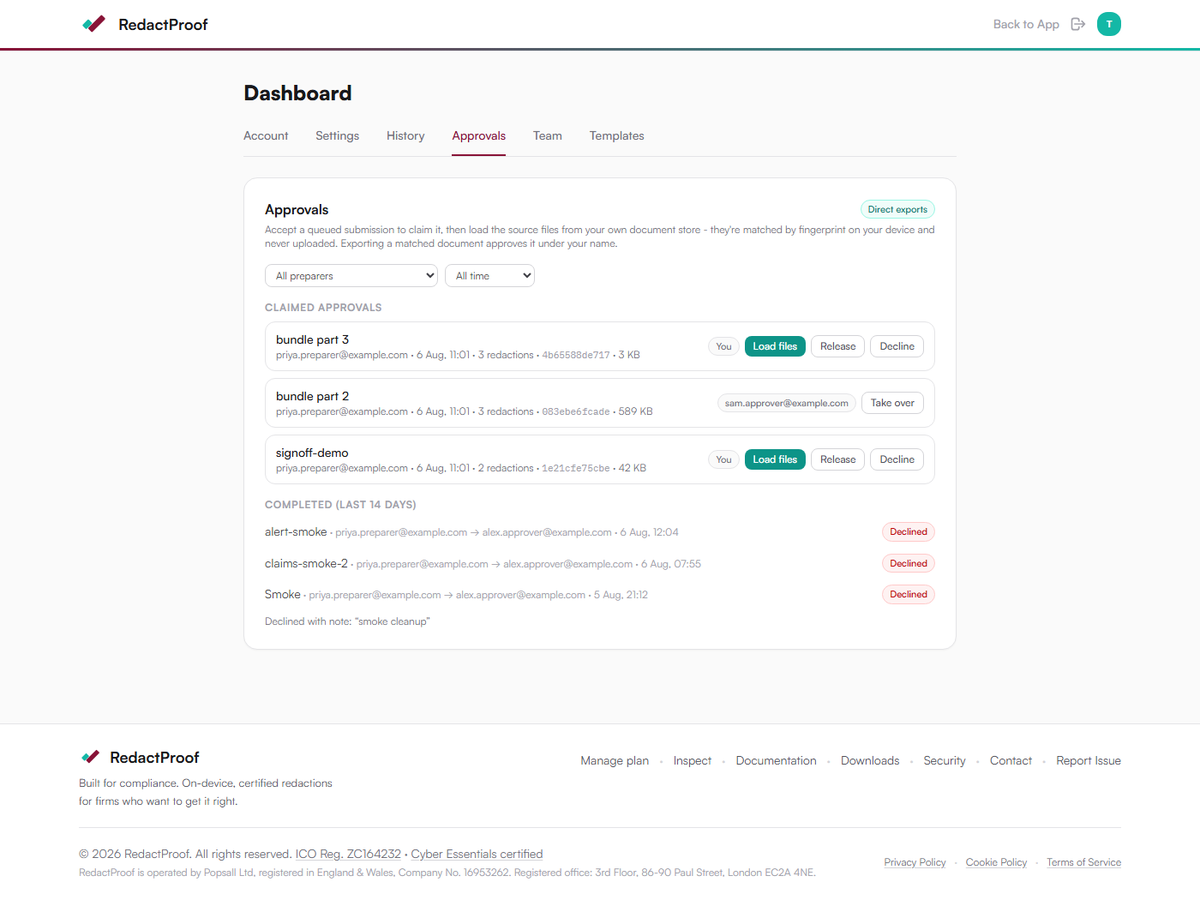
A claim is a coordination signal, not a lock. If a colleague is away, any other approver can take over their claimed submissions (with a confirmation, and an audit entry recording the handover), or the claimant can release work back to the queue. Claims older than a week are tinted so stale ones stand out.
The preparer's view
Preparers work in the editor exactly as normal - automatic detection, manual tools, exemption codes, commits. The only difference: the export button reads Submit for approval. Submitting the same document again simply updates the queue entry - no duplicate alerts. Declined work comes straight back as a Needs revision card with the approver's note; reopening the document restores their previous work automatically.
Tip: teams using custom exemption codes should share them through the team library (Team tab) so the codes resolve on the approver's side too.

Working in batches
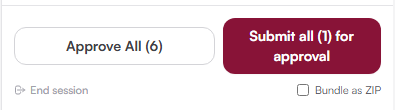
Preparers using bulk mode submit whole batches in one action - Submit all for approval replaces Export all. Documents without committed redactions are skipped and reported. The team gets a single email for the batch, not one per document, and the approver picks the whole set up from the queue with the file-matching panel above.
Notification policy
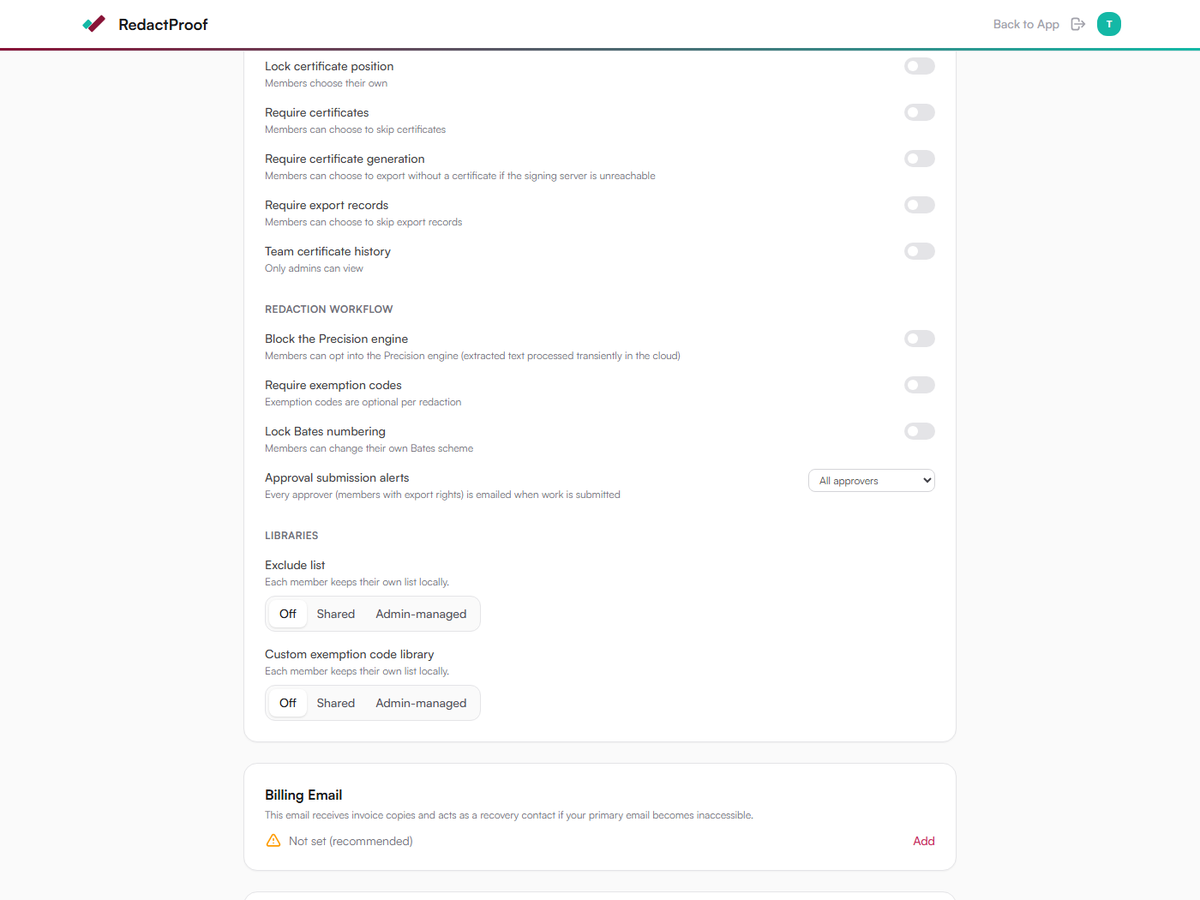
Admins choose who is emailed when work is submitted: all approvers (default), owner only, or nobody - for teams that prefer approvers to work from the queue. Preparers are always emailed when their work is approved or declined; that's personal, not broadcast.
Security & data handling
For security and procurement review - what this workflow does and does not move to RedactProof's servers:
Stored server-side
- Redaction work-state: rectangle geometry, category types, exemption codes and counts
- The document's SHA-256 fingerprint
- An optional reference typed by the preparer (guidance in-app: avoid sensitive titles)
- File size, submission status, claims, decisions and decline notes
- Audit-log entries for every submit, claim, takeover, release, approval and decline
Never stored, never sent
- The document itself - approvers open their own copy from their own document store
- Document text, including the text under any redaction
- Filenames or file paths - file matching runs entirely on the approver's device by content fingerprint
Because matching is by content hash, the right file always matches regardless of what it is called, and the wrong file never can. Decline notes are visible to approvers and the preparer concerned - other members see status only. Claims never gate the export path: they coordinate people, they don't create locks that stuck work can hide behind.
The board shows completed decisions for 14 days; the underlying records - fingerprints, work-state and decisions, never documents - remain part of the team's audit history. See Audit Trail and Security for the wider data-handling picture. For procurement packs, see Public Sector Assurance.
Common questions
Who counts as an approver?
Any team member who is not flagged as Approval required. The owner keeps full board visibility either way, and is only emailed alerts under the policies that include them.
What appears on the certificate?
The export is the approver's act: certificates and the audit trail attribute the export to the approver who reviewed and shipped it. The preparation history stays in the team's audit log.
Where does Bates numbering happen?
At export, by the approver. Bates ranges are reserved when the production actually ships, so numbering stays under the control of the person exporting - preparation never consumes a range, and a declined submission leaves no gap.
What if the approver loses their session mid-batch?
Nothing is lost: exported documents are already resolved, and the rest stay claimed on the board. Re-open the pickup panel, drop the folder again, and carry on - or a colleague takes the remainder over.
Can a preparer approve their own work?
Not while the control is on: flagged preparers cannot export, and nobody can decline their own submission. Approval always crosses to a second person for as long as the member is set to Approval required.
Set it up in two clicks
Team tab, pick a member, switch them to Approval required - the workflow does the rest.
Open RedactProof